
Best Core Web Vitals Image
Optimization Guide 2026
Images are responsible for the majority of Core Web Vitals failures on real websites. A slow-loading hero image tanks your LCP score. Images without declared dimensions cause layout shift. Uncompressed files hurt every metric simultaneously. This guide gives you the exact fixes — with before/after code examples — to go from red to green on PageSpeed Insights.
📋 Table of Contents
What Are Core Web Vitals?
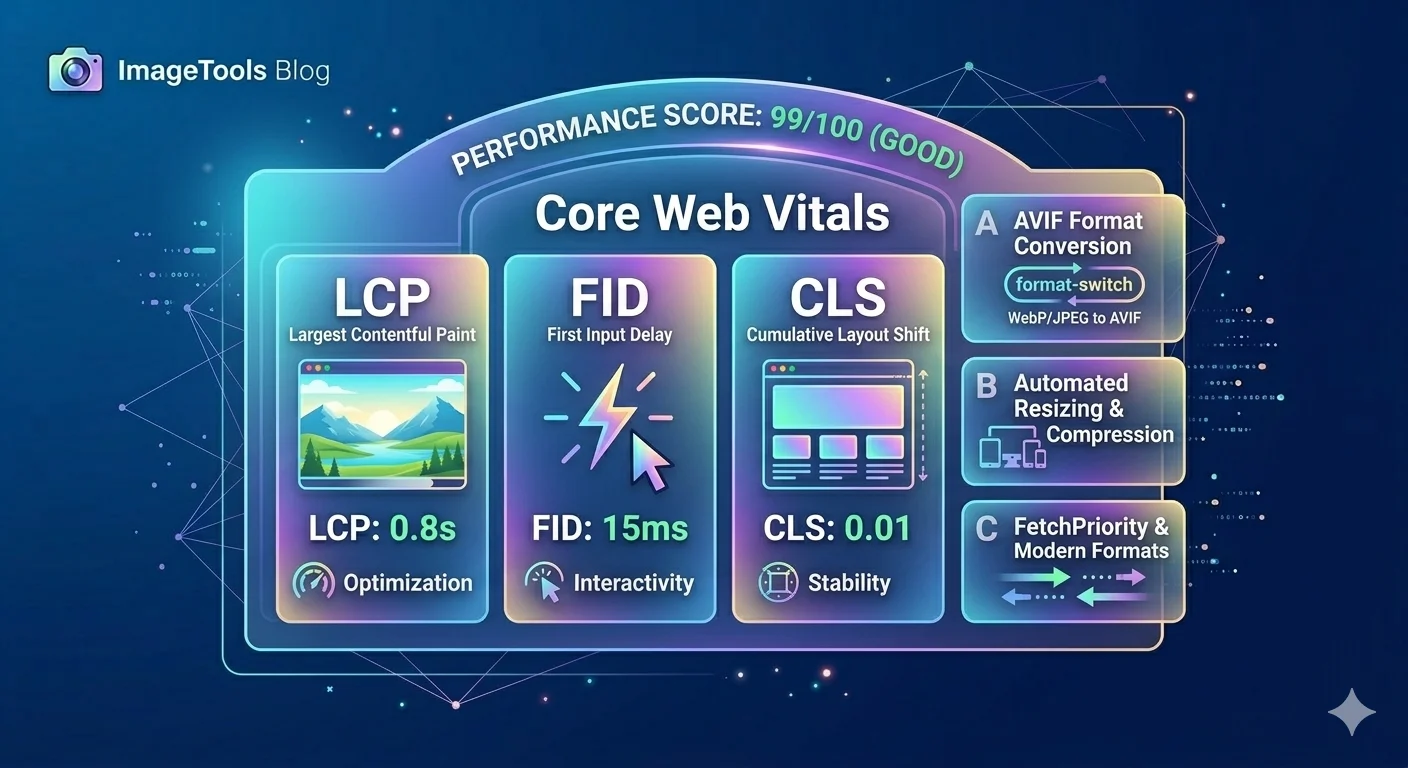
Core Web Vitals are Google’s official set of user experience metrics — confirmed ranking signals since 2021. They measure three aspects of page experience that directly affect real users. Images impact all three metrics in measurable and significant ways:
According to Google’s Core Web Vitals documentation on web.dev, pages that meet the Good thresholds for all three metrics are eligible for a ranking boost in Google Search. Images that are improperly optimized are the single most common cause of failing these thresholds across all website types.
Fix LCP — Your Hero Image Is Too Slow
On most websites, the LCP element is the hero image — the large banner at the top of the page. If your Core Web Vitals LCP score is poor, your hero image is almost certainly the problem. Here are the fixes in order of impact:
A hero image should be under 200KB in WebP format. Most unoptimized hero images are 800KB–3MB. Compressing from 1MB to 180KB cuts LCP by 1–2 seconds on mobile connections — the biggest single improvement you can make to your Core Web Vitals score. Use our Image Compressor and JPG to WebP converter before uploading.
This single attribute tells the browser to prioritize this image above almost everything else — including resources it would normally load first. It was introduced specifically for LCP optimization and is now one of the most effective Core Web Vitals fixes available.
<img src="hero.webp" alt="..."><img src="hero.webp" alt="..." fetchpriority="high" loading="eager">A preload link tells the browser to start downloading the LCP image immediately — before even parsing the HTML body. This is especially effective when the hero is set via CSS background-image rather than an img tag, where the browser cannot discover it until the CSS is parsed.
This is the single most common Core Web Vitals mistake. Adding loading="lazy" to your hero image intentionally delays its loading — which directly causes a poor LCP score because the hero is already in the viewport on first load. Only apply lazy loading to images below the fold.
<img src="hero.webp" loading="lazy"><img src="hero.webp" loading="eager" fetchpriority="high">If your hero displays at 1400px wide but you are serving a 4000px original, the browser downloads 4× more data than it needs. Use our Image Resizer to resize to 1600–1920px max width before uploading — most monitors and Core Web Vitals tests do not need anything larger.
Hero: 1.8MB JPG, no preload
loading=”lazy” on hero image
Hero: 156KB WebP, preloaded
fetchpriority=”high” applied
Fix CLS — Images Causing Layout Shift
Cumulative Layout Shift is a Core Web Vitals metric that measures page instability. It happens when images load without the browser knowing their dimensions in advance — the page renders without the image, then when it loads everything shifts down, frustrating users and tanking your CLS score.
The fix is simple and takes 30 seconds per image: add width and height attributes to every <img> tag on your page.
CSS Still Handles Responsiveness
Adding width and height attributes does not lock the image to a fixed size. As long as you have img { max-width: 100%; height: auto; } in your CSS — which every modern CSS reset includes — the image scales responsively. The browser simply uses the attributes to calculate the aspect ratio and reserve the correct amount of space before the image loads, eliminating the Core Web Vitals CLS penalty.
Other Image-Related CLS Causes
- Images in sliders or carousels without fixed container heights — define a min-height on the wrapper to prevent layout shifts
- Dynamically injected images via JavaScript — always specify dimensions in the element or use the aspect-ratio CSS property
- Ad images loading above content — reserve space with a fixed-size container to prevent ads from shifting page content down
Fix Overall Speed — Compress Everything
Beyond LCP, uncompressed images slow every aspect of page loading and damage your overall Core Web Vitals performance profile. These are the target file sizes to hit before uploading any image:
WebP produces 25–35% smaller files than JPG at equivalent visual quality. On a page with 10 images, switching from JPG to WebP is equivalent to removing 3 images entirely in terms of bytes transferred — without any visible quality loss. Use our JPG to WebP and PNG to WebP converters to make the switch across your library.
These targets achieve Good Core Web Vitals scores on mobile connections where most users are:
- Hero image: under 150–200KB
- Blog content images: under 80KB
- Thumbnails and card images: under 30KB
- Icons and logos: under 10KB — use SVG format if possible
A raw photo from a modern smartphone or DSLR is typically 4–12MB. Displaying this at 800px wide means users download 10–50× more data than the display actually requires. Always resize to display dimensions and compress before uploading to prevent Core Web Vitals failures caused by oversized source files.
Lazy Loading — Use It Right
Lazy loading defers image loading until the user scrolls near the image — reducing initial page weight and improving first load time. But used incorrectly, it damages your Core Web Vitals scores more than it helps. The rule is simple: never lazy load above-fold images, always lazy load below-fold images.
The Most Common Core Web Vitals Mistake: Lazy Loading Everything
Many WordPress performance plugins set loading="lazy" on all images by default, including the hero image. Check your plugin settings immediately — most have an option to exclude the first image or LCP image from lazy loading. Failing to exclude the hero is one of the most common reasons sites score poorly on Core Web Vitals despite running optimization plugins.
Responsive Images with srcset
Serving a 1600px wide image to a mobile user on a 390px screen wastes bandwidth and hurts mobile Core Web Vitals scores. The srcset attribute lets you provide multiple image sizes and lets the browser automatically select the most appropriate one for each device:
WordPress automatically generates multiple image sizes and adds srcset to images inserted through the media library. For images added manually or via page builders, add srcset yourself or use a dedicated image optimization plugin to automate this for Core Web Vitals compliance.
⚡ Fix Core Web Vitals Images — Free Tools
Compress to under 150KB, convert to WebP, and resize to the correct dimensions. All in your browser — no upload required, your images never leave your device.
Complete Core Web Vitals Image Checklist
Run every page through this checklist before publishing to verify full Core Web Vitals image compliance:
