
How to Add a Watermark to Photos Free
in 2026
Learning how to add a watermark to photos free has never been easier — no Photoshop, no software download, no account required. This step-by-step guide shows you exactly how to add text or logo watermarks to any photo entirely in your browser, with full control over position, opacity, and size.
📋 Table of Contents
Why You Should Watermark Your Photos
Every photo you post online without a watermark can be downloaded and reposted instantly. Knowing how to add a watermark to photos free gives you three key benefits:
- Deters casual theft — most people move on rather than spend time removing a visible watermark
- Preserves attribution — your name or logo travels with the image even when shared without permission
- Builds brand awareness — every share of your watermarked photo is free advertising for you
Text Watermark vs Image Watermark
| Type | Best For | Pros | Cons |
|---|---|---|---|
| 💬 Text Watermark | Personal photographers, bloggers | No logo needed, fully customizable | Less visual brand impact |
| 🖼️ Image Watermark | Brands, businesses, professionals | Professional, strong recognition | Requires transparent PNG logo |
Best Combination
Use your logo as image watermark plus a small text line with your website URL. Even if the logo gets cropped, your URL stays visible.
How to Add a Watermark to Photos Free — Step by Step
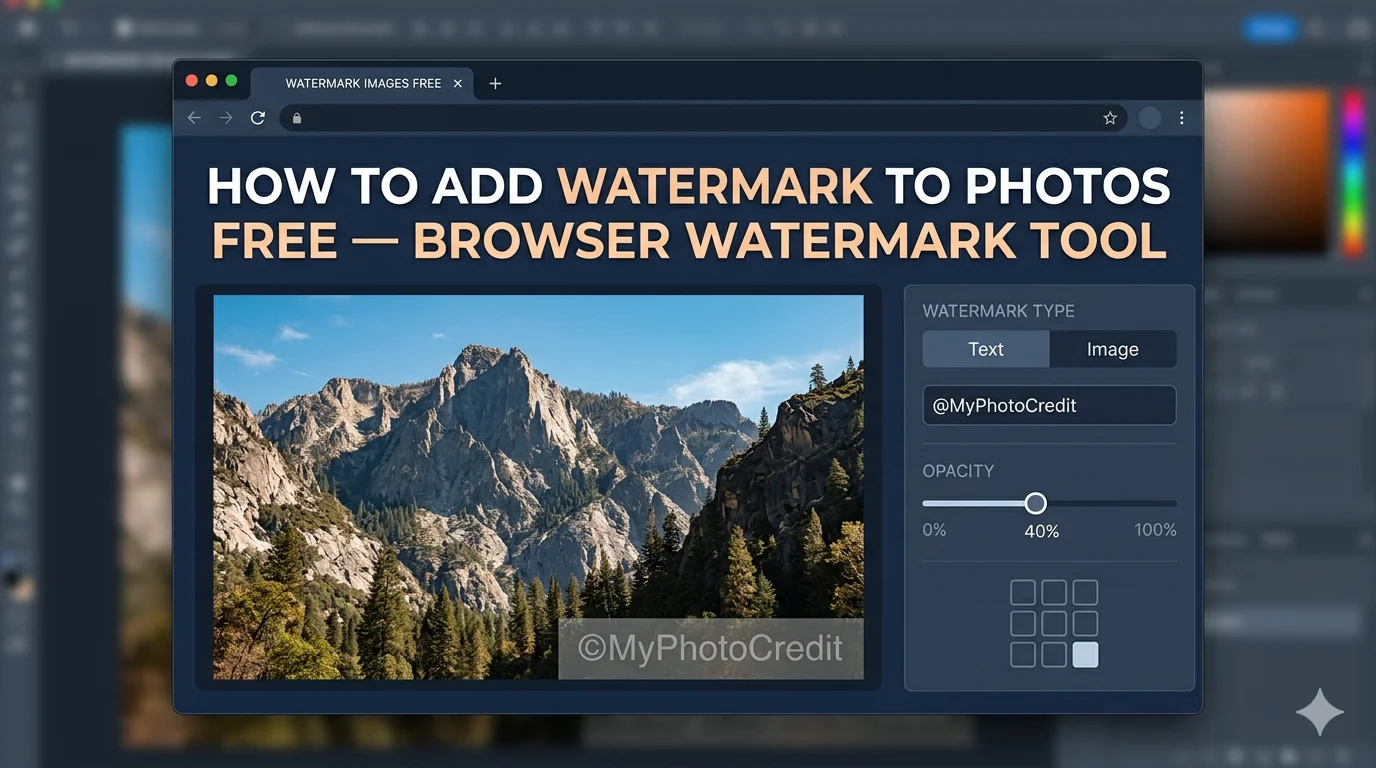
Here’s exactly how to add a watermark to photos free using our Watermark Adder — no software, works in any browser:
Open the Free Watermark Tool
Go to imagesearchtechniques.org/watermark-adder. No account needed — everything runs locally in your browser.
Upload Your Photo
Drag and drop your image or click to browse. Supports JPG, PNG, and WebP up to 20MB.
💡 Always watermark a copy — keep your original unwatermarkedChoose Watermark Type
Select Text to type your name, brand, or URL — or Image to upload your transparent PNG logo.
Set Position, Size & Opacity
Choose from 9 presets or drag anywhere. Set opacity to 30–60% for the best balance of visibility and subtlety.
⭐ Recommended: Bottom-right, 40% opacityDownload Your Watermarked Photo
Click Download. Output is full original resolution — no quality loss, no compression artifacts.
💧 Add a Watermark to Photos Free — Right Now
No sign-up, no software, no file upload to servers. Runs entirely in your browser.
Best Watermark Position
Easy to crop
Easy to crop
Easy to crop
Harder to crop
Best protection
Harder to crop
Common
Good balance
Recommended
Corner Watermarks Are Easy to Crop
Any corner watermark can be removed in seconds. For truly valuable images use a center watermark at low opacity — much harder to remove without damaging the photo.
Choosing the Right Opacity
Pro Tips for Better Watermarks
Use Your Domain, Not Just Your Name
Use “yoursite.com” instead of “John Smith Photography” — it’s more actionable and drives traffic every time your photo is shared.
Match Watermark Color to the Photo
Use white on dark photos, dark grey on light photos. A white watermark on a white sky is invisible and offers no protection.
Keep Your Original Unwatermarked
Always watermark a copy. Buyers and printers expect clean files — watermarks on print products look unprofessional.
Watermarks Don’t Replace Copyright Registration
A watermark deters theft but isn’t legal protection. For full recourse, consider registering with the U.S. Copyright Office — official registration gives you the legal standing to pursue infringement claims in court.
