
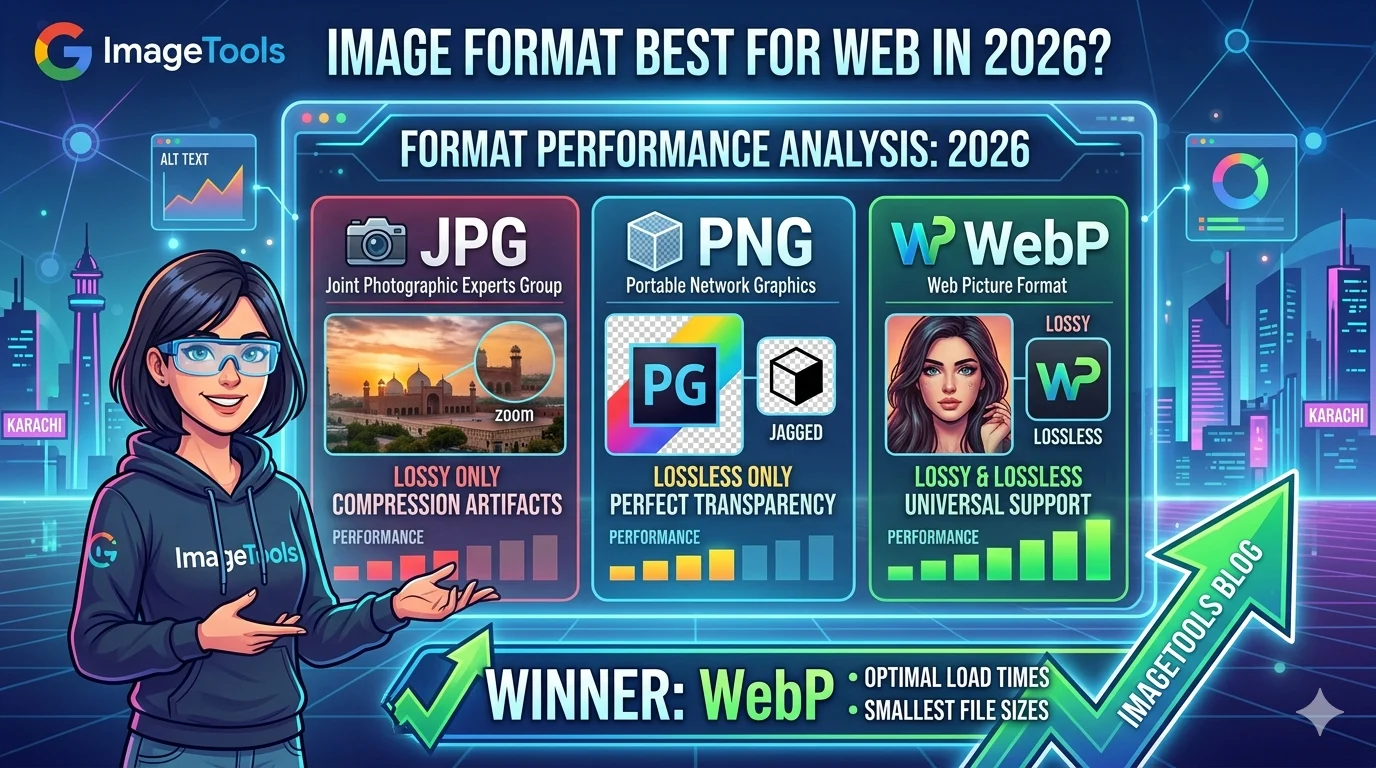
JPG vs PNG vs WebP:
Which Format Wins in 2026?
JPG vs PNG vs WebP — choosing the wrong format slows your website, hurts SEO, and costs rankings. This complete comparison covers file size, quality, browser support, and exactly when to use each format.

📋 Table of Contents
- Quick Overview: JPG vs PNG vs WebP
- What is JPG? Pros, Cons & Best Uses
- What is PNG? Pros, Cons & Best Uses
- What is WebP? Pros, Cons & Best Uses
- File Size Comparison: Real Numbers
- Image Quality Comparison
- Browser & Software Support
- SEO Impact of Image Formats
- When to Use Each Format
- How to Convert Between Formats
- Frequently Asked Questions
Quick Overview: JPG vs PNG vs WebP
Before we dive deep, here’s a quick side-by-side comparison of all three formats:
| Feature | JPG | PNG | WebP |
|---|---|---|---|
| Compression type | Lossy | Lossless | Lossy + Lossless |
| Transparency (alpha) | No | Yes | Yes |
| Animation | No | APNG only | Yes |
| Typical file size | Medium | Largest | Smallest |
| Photo quality | Excellent | Perfect | Excellent |
| Sharp edges / text | Artifacts | Perfect | Good |
| Browser support | 100% | 100% | 96%+ |
What is JPG? Pros, Cons & Best Uses
JPG (also written JPEG) has been the dominant image format on the web since the 1990s. It was designed specifically for compressing photographs — images with millions of colors and smooth gradients where small quality losses are invisible to the human eye. Learn more about the JPEG standard.
JPG uses lossy compression, which means it permanently discards some image data every time you save. The trade-off is a dramatically smaller file size compared to an uncompressed image — typically 10× to 20× smaller. See Google’s WebP study comparing compression efficiency.
How JPG Compression Works
JPG divides an image into 8×8 pixel blocks and applies a mathematical transform (Discrete Cosine Transform) to reduce detail that the human eye is least sensitive to — particularly fine color differences. The higher the compression, the more data is thrown away, and the more visible the blocky “artifacts” become.
JPG Quality Loss is Permanent
Every time you open a JPG and re-save it, quality is lost again. After several rounds of saving, artifacts become clearly visible. Always keep your original in a lossless format (PNG or RAW) and export JPG only for final delivery.
JPG Pros
- Universal support — works in every browser, email client, operating system, app, and printer on earth
- Small file sizes for photos — at quality 80–85, JPG files are much smaller than PNG with barely visible quality loss
- Great for photographs — complex color gradients compress extremely well
- Widely understood — designers, developers, and clients all know how to work with JPG
JPG Cons
- No transparency — JPG cannot have a transparent background; it always has a solid color background
- Lossy compression — quality degrades every time you save
- Compression artifacts — at high compression, blocky artifacts appear especially around text and sharp edges
- Not ideal for graphics — logos, screenshots, and text look blurry compared to PNG
🔁 Need to Convert JPG?
Use our free online tools to convert JPG to other formats instantly — no upload, 100% private.
What is PNG? Pros, Cons & Best Uses
PNG (Portable Network Graphics) was created in 1996 as a patent-free replacement for GIF. Unlike JPG, PNG uses lossless compression — meaning no quality is lost when you save a PNG file. The original pixel data is perfectly preserved. Read the W3C PNG specification.
PNG’s killer feature is alpha transparency — the ability to have partially or fully transparent pixels. This makes PNG the go-to format for logos, icons, UI elements, and any image that needs to sit on top of a colored or patterned background.
PNG Pros
- Lossless quality — pixel-perfect reproduction, no compression artifacts ever
- Transparency support — full alpha channel with 256 levels of transparency
- Perfect for sharp edges — logos, text, icons, screenshots look razor-sharp
- Universal support — works everywhere JPG works
- Safe to re-save — you can open and save a PNG 1000 times with zero quality loss
PNG Cons
- Large file sizes — especially for photographs; a PNG photo can be 5–10× larger than the same JPG
- Not suitable for photographs on the web — the file sizes are too large for fast page loading
- No animation support — standard PNG is static (APNG exists but has limited support)
Pro Tip: PNG-8 vs PNG-24
PNG-8 uses a limited palette of up to 256 colors (like GIF), while PNG-24 supports full 16 million colors. Always use PNG-24 for photos or complex graphics. PNG-8 is only suitable for simple icons with very few colors.
🔁 Need to Convert PNG?
Convert PNG to JPG or WebP to reduce file size while keeping great quality.
What is WebP? Pros, Cons & Best Uses
WebP is a modern image format developed by Google and released in 2010. It was designed from the ground up to be the ideal image format for the web — combining the best features of JPG (small file size for photos) and PNG (lossless compression and transparency) into one format. Learn more on the Google WebP developers page.
WebP supports both lossy and lossless compression, transparency, and even animation. For most web use cases, WebP is simply the best format available today. Check Can I use WebP for browser support data.
WebP Pros
- Smallest file sizes — WebP lossy files are 25–35% smaller than equivalent JPG at the same visual quality
- Lossless mode — WebP lossless files are ~26% smaller than equivalent PNG
- Transparency support — like PNG, WebP fully supports alpha transparency
- Animation support — WebP can replace GIF with far better quality and smaller file sizes
- Excellent browser support — all modern browsers support WebP (Chrome, Firefox, Safari, Edge)
- Better Core Web Vitals — smaller images = faster loading = better LCP scores
WebP Cons
- Limited software support — older tools like Photoshop (pre-2021), Figma (partial), Microsoft Word, and most email clients don’t support WebP
- Not for print — print workflows typically require JPG or TIFF
- Older browsers — IE11 and Safari pre-2020 don’t support WebP (though these represent less than 5% of users now)
- Less familiar — clients and non-technical users may not know how to open .webp files
WebP Browser Support in 2026
As of 2026, WebP is supported by over 96% of all browsers worldwide. Safari added WebP support in version 14 (2020). The only users who can’t see WebP are those on very old browsers — a tiny minority you can serve JPG/PNG fallbacks to using the HTML <picture> element.
🔁 Convert to WebP Free
Convert your JPG or PNG images to WebP instantly — save 25–35% file size with no quality loss.
File Size Comparison: Real Numbers
Let’s look at real-world file sizes. For a typical 2000×1500px photograph, here’s how the three formats compare at equivalent visual quality:
For a simple logo or screenshot at 800×600px, the difference is even more dramatic:
| Image Type | JPG | PNG | WebP |
|---|---|---|---|
| Photo (2000×1500) | ~2.1 MB | ~4.2 MB | ~1.5 MB ✓ |
| Logo (800×600, transparent) | N/A | ~180 KB | ~130 KB ✓ |
| Screenshot (1920×1080) | ~450 KB | ~1.8 MB | ~320 KB ✓ |
| Hero banner (1600×900) | ~320 KB | ~2.1 MB | ~220 KB ✓ |
Image Quality Comparison
File size savings are useless if the quality is poor. Here’s how each format handles different types of image content:
Photographs and Complex Images
All three formats handle photographs well at appropriate settings. JPG at quality 80–90 produces excellent results. WebP at quality 75–85 produces similar or better visual quality at smaller file sizes. PNG is technically perfect but creates unnecessarily large files for photographs.
Winner: WebP (best quality-to-size ratio) or JPG (if universal compatibility needed)
Logos, Icons, and Text
JPG struggles with sharp edges and flat colors — it adds blocky artifacts around text and logo edges. PNG and WebP lossless both preserve these perfectly. For logos with transparency, JPG is simply not an option.
Winner: PNG (universal support) or WebP lossless (smaller file)
Screenshots
Screenshots typically contain both text and photographs — a mix that JPG handles poorly (text gets blurry). PNG handles screenshots perfectly but creates large files. WebP lossless is the ideal choice: perfect quality at smaller file size.
Winner: WebP lossless or PNG
Browser & Software Support
| Platform / App | JPG | PNG | WebP |
|---|---|---|---|
| Chrome, Edge, Firefox | ✅ | ✅ | ✅ |
| Safari (2020+) | ✅ | ✅ | ✅ |
| Internet Explorer 11 | ✅ | ✅ | ❌ |
| Gmail / Outlook email | ✅ | ✅ | ❌ |
| Photoshop (2021+) | ✅ | ✅ | ✅ |
| Microsoft Word / Office | ✅ | ✅ | ❌ |
| WordPress | ✅ | ✅ | ✅ |
SEO Impact of Image Formats
Image format choice directly affects your SEO in two ways: page speed and Core Web Vitals. Learn more about Google’s Core Web Vitals.
Page Speed
Google has confirmed that page speed is a ranking factor. Images are typically the largest files on any webpage — often accounting for 50–70% of total page weight. Switching from PNG to WebP can reduce your total page weight by 30–40%, directly improving your page speed score.
Core Web Vitals — LCP
LCP (Largest Contentful Paint) measures how long it takes for the largest visible element on your page to load. For most pages, this is the hero image. A smaller WebP hero image loads faster, directly improving your LCP score — which Google uses as a ranking signal.
Google’s Image Search
Google Image Search indexes all three formats equally. Using WebP does not hurt your chances of appearing in image search results. Proper alt text, descriptive filenames, and image sitemaps matter far more for image SEO.
Check Your Image SEO Score
Use our free Image SEO Analyzer to check if your images are optimized for Core Web Vitals, file size, format, alt text, and more. Get an instant score with actionable recommendations.
When to Use Each Format
Use JPG for:
Photos, product images, backgrounds, anything needing maximum compatibility — emails, print, MS Office documents
Use PNG for:
Logos, icons, UI elements, screenshots, transparent backgrounds, anything with text or sharp edges
Use WebP for:
All web images where speed matters — hero banners, product photos, blog images, anything served through a browser
Avoid WebP for:
Email marketing, print materials, Word/PowerPoint documents, anything sent to non-technical users
Avoid PNG for:
Full-size photographs on the web — PNG photos are 3–5× larger than WebP with no visible quality benefit
Avoid JPG for:
Logos, screenshots, anything with sharp text or flat colors, anything needing a transparent background
How to Convert Between Formats
Converting between image formats is straightforward with the right tools. Here are the most common conversions and why you’d need them:
JPG to WebP — For Web Performance
The most impactful conversion you can make. Converting your existing JPG photos to WebP typically saves 25–35% file size with no visible quality loss. Use this for hero images, product photos, blog images — anything on your website.
Use our free JPG to WebP converter — batch convert up to 20 images at once, see the exact file size savings for each image.
PNG to WebP — For Logo & Graphic Optimization
If you have logos or graphics in PNG, converting to WebP lossless gives you the same perfect quality at 20–30% smaller file size. Transparency is fully preserved.
Use our PNG to WebP converter — supports both lossy and lossless conversion modes.
WebP to JPG — For Compatibility
If you’ve received a WebP image but need to use it in an email, Word document, or send it to someone who can’t open WebP, convert it to JPG first.
Use our WebP to JPG converter — instantly converts with quality control.
WebP to PNG — For Editing
Need to edit a WebP image in Photoshop or Figma? Convert it to PNG first to preserve transparency and quality during editing.
Use our WebP to PNG converter — lossless conversion preserving all transparency.
